

Converting an STL file to GCODE is a required step in every 3D printing workflow, yet it’s often treated as a formality. Load the model, hit “slice,” export the file – done. In reality, this is the stage where most printing problems are either prevented or silently introduced.
A smoother conversion doesn’t come from memorizing settings, but from understanding what each stage of the process is responsible for and where things typically go wrong.
Step one happens before conversion even starts
The conversion process begins with the STL file itself. Even the best slicer can struggle with a model that has geometric issues. Small gaps, overlapping faces, or broken meshes may not be obvious when viewing the model, but they can lead to missing layers, strange toolpaths, or failed prints once translated into GCODE.
This is why experienced users often inspect or repair STL files before converting them. A clean, watertight model gives the converter far fewer opportunities to make bad assumptions.
Turning geometry into layers
Once the STL is loaded into a converter or slicer, the software’s first task is to decide how the object will be built vertically. The model is divided into layers, each representing a thin horizontal slice of material. This decision alone affects surface quality, strength, and print time more than most people expect.
Thin layers capture detail but increase printing time and file complexity. Thicker layers speed things up but can exaggerate surface stepping. The converter doesn’t “know” which is better – it simply follows the parameters it’s given and generates GCODE accordingly.
From layers to motion
After slicing, the software calculates how the printer should move to create each layer. This includes extrusion paths, travel moves, retractions, and transitions between features. At this point, the STL file has effectively disappeared. Everything is now expressed as motion, speed, and timing.
Desktop slicers such as Cura, PrusaSlicer, or Simplify3D expose this logic to the user, allowing fine-grained control over how the GCODE is generated. These offline tools are ideal when print quality, material behavior, or mechanical limits need to be carefully balanced.
For simpler workflows or quick conversions, online tools are often sufficient. Services like AnyConv provide a straightforward way to convert STL files to GCODE without installing or configuring software. While they don’t replace advanced slicers in every scenario, they’re practical for previews, quick tests, or users who don’t need deep parameter tuning.
Common mistakes that appear at this stage
One of the most frequent conversion problems is incorrect scale. Because STL files don’t store units explicitly, the converter must assume them. A model designed in millimeters may be interpreted as inches, leading to parts that are far too large or impossibly small. This issue often goes unnoticed until the printer tries – and fails – to start the job.
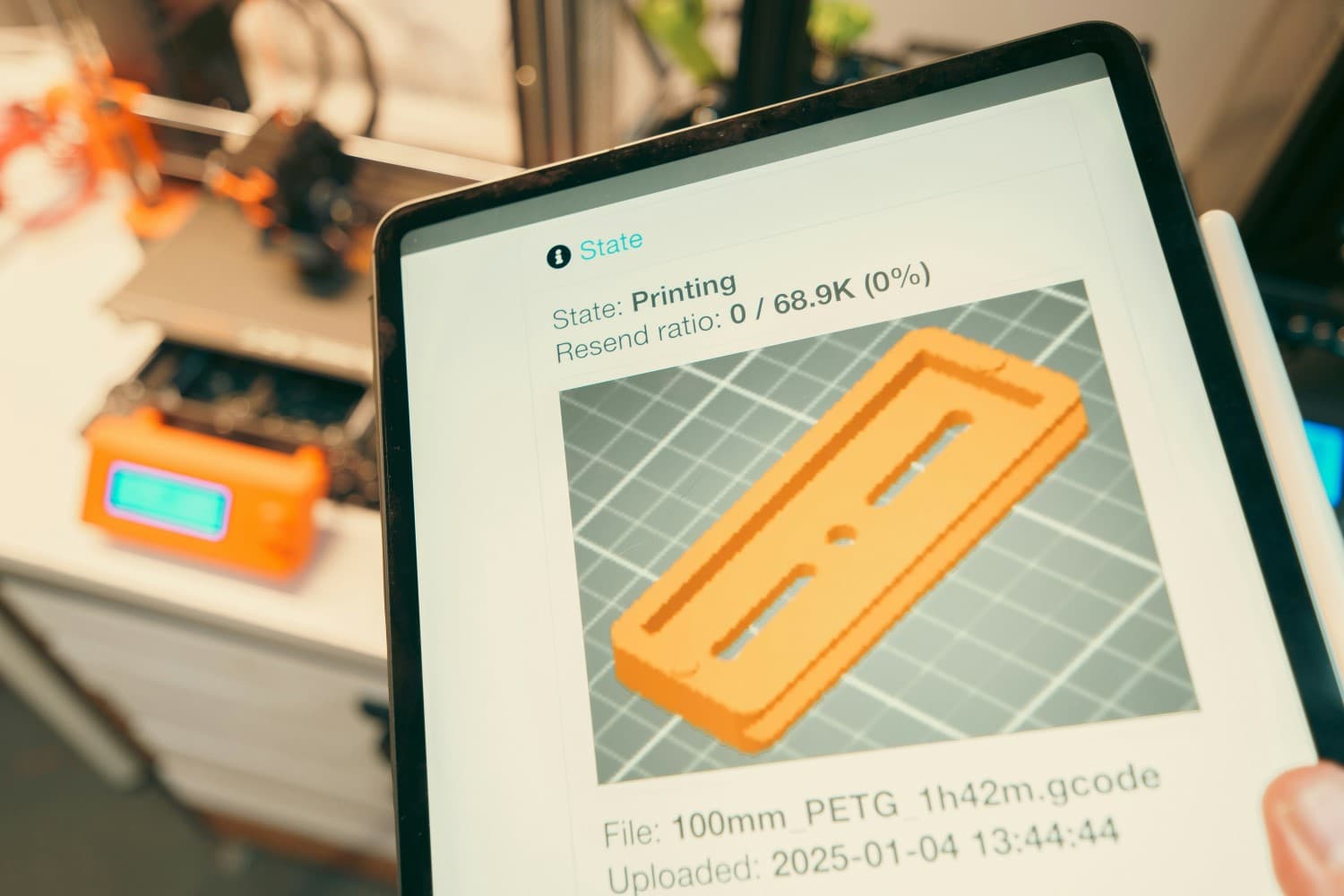
Another common mistake is relying entirely on default settings. Presets are designed to be safe, not optimal. Models with thin walls, sharp overhangs, or fine internal details may require different assumptions. When those differences aren’t accounted for, the resulting GCODE can instruct the printer to attempt movements the geometry can’t realistically support.
Support structures are another frequent source of trouble. Too few supports can cause sagging and collapse, while excessive supports can waste material and damage surfaces during removal. The converter will happily generate GCODE either way – it doesn’t judge the outcome, it only executes the logic it’s given.
When the conversion succeeds but the print doesn’t
A GCODE file can be technically valid and still unsuitable for printing. Excessive speeds, aggressive retractions, or inefficient travel paths won’t trigger errors during conversion, but they can destabilize a print in practice. This is why previewing toolpaths before printing is such a valuable habit. It reveals motion patterns that aren’t obvious from the STL model alone.
Many print failures blamed on hardware are actually rooted in conversion decisions made earlier.
Choosing the right tool for the job
There’s no universal “best” STL to GCODE converter. Offline slicers excel when control and repeatability matter. Online converters are convenient when speed and simplicity are the priority. What matters most is recognizing that conversion is not a mechanical step – it’s where design intent is translated into physical behavior.
Understanding that role makes it much easier to diagnose issues and improve results.
The quiet importance of a good conversion
When STL to GCODE conversion is done well, it fades into the background. The printer moves smoothly, layers bond properly, and the finished part looks the way it should. That success isn’t accidental – it’s the result of clean geometry, sensible assumptions, and a converter that translates shape into motion without distortion.
Once you approach STL to GCODE conversion as a deliberate process rather than a button click, many of the frustrations of 3D printing start to disappear.
